Toggle is used to represent a binary state that users can turn on or off. It provides an immediate, visible way to control settings or preferences without requiring additional confirmation.
Anatomy
Section titled “Anatomy”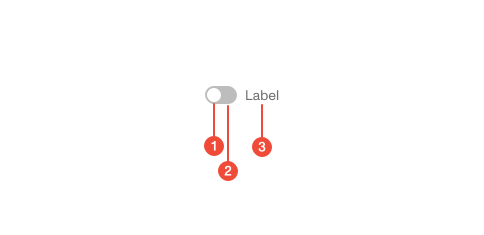
- Thumb : the circular handle that slides along the track to indicate state.
- Track : the horizontal bar that represents the on and off states.
- Label : describes what the toggle controls.
| Prop | Type | Required | Default | Description |
|---|---|---|---|---|
className | string | undefined | false | - | - |
disabled | boolean | undefined | false | - | - |
titleOff | string | undefined | false | - | - |
titleOn | string | undefined | false | - | - |
onChange | ((value: boolean) => void) | undefined | false | - | - |
value | boolean | "" | null | undefined | true | - | - |
id | string | undefined | false | - | - |
labelOn | ReactNode | false | - | - |
labelOff | ReactNode | false | - | - |
'data-test' | string | undefined | false | - | - |
'aria-label' | string | undefined | false | - | - |
size | ToggleSize | undefined | false | - | - |
Usage guidance
Section titled “Usage guidance”When to use
Section titled “When to use”- To represent a binary, on/off, or enabled/disabled state.
- When changes take effect immediately, without requiring form submission.
- For settings or preferences that users can quickly enable or disable.
- When the action is reversible and lightweight.
When to use something else
Section titled “When to use something else”- Use Checkboxes when the action is part of a form and requires submission.
- Use a Button for discrete, one-time actions that perform a task rather than toggle a state.
- Use Radio Buttons when users must choose between two exclusive options that are both visible.
- Use a Select or Combobox component for more than two possible states.
Do’s & don’ts
Section titled “Do’s & don’ts”Do
- Use clear labels to describe what the toggle controls.
- Default to the most common or safe state.
- Group related toggles logically in settings or configuration pages.
- Use Tooltips to provide clarity when the control’s impact isn’t obvious.
Don't
- Use toggles for actions that require confirmation or have significant consequences.
- Leave a toggle unlabeled or rely solely on color to indicate meaning.
- Use toggles for temporary modes that should revert automatically.
- Place multiple unrelated toggles too close together; this reduces clarity and increases risk of error.
Accessibility guidelines
Section titled “Accessibility guidelines”- Use
role="switch"witharia-checked="true"or"false"to convey state. - Each toggle must have a descriptive, programmatically associated label.
- Support keyboard navigation.
- Announce state changes to assistive technologies when toggled.
- For grouped toggles, use FormField to associate helper or error text with
aria-describedby.
Content guidelines
Section titled “Content guidelines”- Use sentence case for labels (for example, Enable notifications).
- Keep labels short and action-oriented.
- Write helper text that clarifies the outcome (for example, Turns on email updates).
- Avoid negations or double negatives in labels (for example, use Enable feature instead of Disable notifications off).
- Ensure the label clearly communicates what will happen when toggled on.