Buttons trigger actions. PDS provides two button types, standard buttons (optional icon + label) and icon buttons (icon only), with variants for different emphasis and contexts.
Anatomy
Section titled “Anatomy”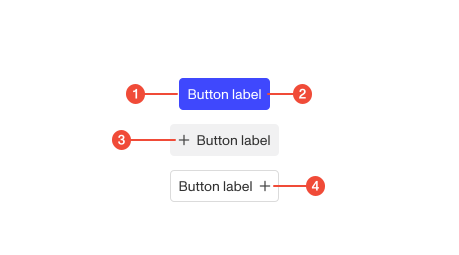
- Container : the clickable shape that houses icon and/or label.
- Label (optional): communicates the action (standard buttons only).
- Leading icon (optional): appears before the label.
- Trailing icon (optional): appears after the label.
| Prop | Type | Required | Default | Description |
|---|---|---|---|---|
variant | "text" | "inverse" | "basic" | "primary" | "danger" | "outline" | undefined | false | - | - |
isPending | boolean | undefined | false | - | Loading state of icon |
prefixIcon | ReactNode | false | - | Prepended icon element |
prefixIconType | "inherit" | "basic" | undefined | false | - | - |
suffixIcon | ReactNode | false | - | Appended icon element |
size | "md" | "sm" | undefined | false | - | - |
to | any | false | - | Changes the button into a link |
target | any | false | - | Overrides the target of the link if to is provided and is an external link. |
type | "button" | "reset" | "submit" | undefined | false | - | Note: we may want to default this to ‘button’ in the future, but many instances of this Button component in dashboard currently rely on the default ‘submit’ behavior that occurs when using this in redux-form so we’ll have to comb through and manually add the type=‘submit’ prop. |
width | "button" | "auto" | "full" | "icon" | undefined | false | - | - |
onClick | MaybePromise | undefined | false | - | - |
onSecondaryBackground | boolean | undefined | false | - | In some cases we render a button on a secondary background, which needs an adjustment for certain variants. |
Usage guidance
Section titled “Usage guidance”First, choose a button type:
- Standard button (optional icon + label): use for primary workflows where clarity of the action matters. The label must stand on its own without surrounding context.
- Icon button (icon only): use for compact, repeated, or well-understood actions (e.g., close, edit). Must have an accessible name (aria-label) since there’s no visible text.
Then, select a variant:
| Variant | Description | Image |
|---|---|---|
| Primary | The page’s main action. Use one primary action per view/section. | 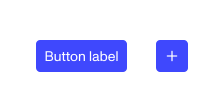 |
| Default | General actions with regular emphasis. | 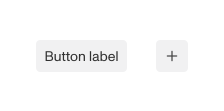 |
| Outlined | Secondary actions that need visual affordance without heavy emphasis. | 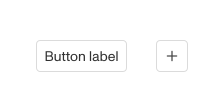 |
| Text / Icon | Standard button: text only. Icon button: icon only. Lowest emphasis; use when contextual, inline, or when visual noise must be minimal. | 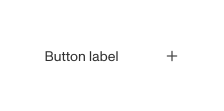 |
| Inverse | For dark or colored surfaces where other variants would not meet contrast or feel too heavy. | 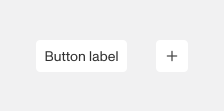 |
| Danger | For destructive or high-risk actions (delete, remove, reset). Always confirm or provide undo. | 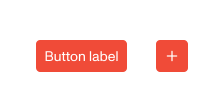 |
When to use
Section titled “When to use”- Triggering an explicit action (submit, save, create, continue).
- Navigating to the next step in a task flow.
- Opening or closing an element (e.g., expand a panel, close a modal).
- Initiating a command that changes system state (e.g., start, stop, refresh).
- Performing contextual actions on an object (e.g., edit, delete, share).
- Providing quick access to secondary or utility actions (via icon buttons).
- Opening up a menu to display additional selection choices.
When to use something else
Section titled “When to use something else”- For navigation to a different page/route from a body of text, use Links.
- To define on/off states rather than discrete actions, use Toggles.
- For displaying filtering and selection, not commands, use Stickers.
- When the action is one of several related choices, use a Dropdown Menu to display the choices.
Do’s & don’ts
Section titled “Do’s & don’ts”Do
- Use one Primary per view/section; pair with Outlined/Default for secondary actions.
- Keep labels short, action-oriented verbs (e.g., “Save,” “Download,” “Continue”).
- Use Text/Icon variants for very low-emphasis, inline, or dense areas.
- Provide clear Danger affordances only where destructive outcomes are possible.
Don't
- Stack multiple Primary buttons together.
- Use icon buttons without an accessible name.
- Rely on color alone to convey importance; placement and hierarchy matter.
- Overuse buttons for navigation when a link is more suitable, such as in a body of text.
Accessibility guidelines
Section titled “Accessibility guidelines”- Names & roles:
- Standard buttons: visible text becomes the accessible name.
- Icon buttons: set aria-label to the action (e.g.,
aria-label="Close").
- Ensure activation with Enter and Space; focus order must be logical.
- Communicate hover, focus, active, disabled, and loading (use
aria-busyoraria-disabledwhen applicable). - For the danger variant, pair color with text describing the consequence; consider a confirmation pattern.
Content guidelines
Section titled “Content guidelines”- Be clear and concise, keep labels to 1–2 words when possible.
- Use sentence case (e.g., “Save changes,” not “Save Changes”).
- Use verbs to describe the action (“Create invoice,” “Download CSV”).
- Avoid punctuation and ellipses.
- For danger actions, label specifically (“Delete file”) and avoid ambiguity (“Remove”).