A Dropdown Menu presents a list of actions or options in a temporary surface that appears in response to another UI element, such as when a user clicks a button. Dropdown menus help organize related actions without overwhelming the interface. The Dropdown Button component is built using Dropdown Menu. If you want to open a dropdown menu with a button as the trigger, use Dropdown Button instead.
Anatomy
Section titled “Anatomy”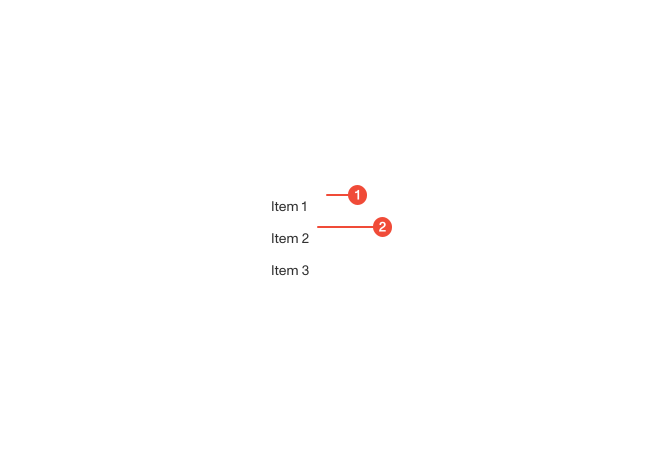
- Menu container : the surface that holds the list of options.
- Menu items : the individual actions or selections within the menu.
| Prop | Type | Required | Default | Description |
|---|---|---|---|---|
id | string | undefined | false | - | - |
className | string | undefined | false | - | - |
trigger | FunctionComponentElement<any> | true | - | - |
contentProps | DropdownMenuContentProps | undefined | false | - | Props passed to internal DropdownMenu.Content component. |
triggerProps | DropdownMenuTriggerProps | undefined | false | - | Props passed to internal DropdownMenu.Trigger component. |
portalProps | DropdownMenuPortalProps | undefined | false | - | Props passed to internal DropdownMenu.Portal component. |
portal | boolean | undefined | false | - | Whether or not to wrap menu with DropdownMenu.Portal component. |
disabled | boolean | undefined | false | - | Whether or not clicks render menu items. |
zIndex | ZIndex | undefined | false | - | - |
Usage guidance
Section titled “Usage guidance”When to use
Section titled “When to use”- To expose a group of related actions in response to a user interacting with a trigger element (e.g., an icon, avatar, or overflow menu).
- To save space in dense layouts where showing all actions inline would be overwhelming.
- To provide secondary or contextual actions that don’t need constant visibility.
When to use something else
Section titled “When to use something else”- Use a Dropdown Button if you want a button trigger that opens a menu (since Dropdown Button is built on Dropdown Menu).
- Use a Select or Combobox when the intent is to choose a value rather than trigger an action.
- Use Tabs for persistent view switching instead of hiding navigation in a menu.
Do’s & don’ts
Section titled “Do’s & don’ts”Do
- Ensure the menu appears adjacent to the trigger and does not obscure important content.
- Keep menu options concise and action-oriented.
- Use dividers to group related items when necessary.
- Place destructive actions at the bottom of the menu.
Don't
- Overload menus with too many items, ideally fewer than 7.
- Use a dropdown menu for navigation between major pages or workflows, use links or tabs instead.
- Hide critical, high-frequency actions in a dropdown.
- Rely on color alone to indicate importance or risk—use clear labels.
Accessibility guidelines
Section titled “Accessibility guidelines”- The menu should be associated with its trigger via
aria-controlsoraria-labelledby. - Use
role="menu"for the container androle="menuitem"for each action. - Support full keyboard interaction.
- Focus should move into the menu when opened and return to the trigger when closed.
- Maintain sufficient color contrast for menu items, states (hover, focus, selected), and dividers.
Content guidelines
Section titled “Content guidelines”- Use short, action-oriented verbs for menu items (e.g., “Edit,” “Delete,” “Download”).
- Keep labels consistent with terminology used elsewhere in the product.
- Use sentence case for all items.
- Avoid redundancy in menu item labels; the context should be clear from the trigger and surrounding UI.
- Clearly label destructive actions and, when appropriate, pair them with a confirmation pattern.