A combobox combines a text field with a searchable popover to let users make single or multiple selections. It supports search and contextual enhancements like descriptions, icons, and truncation.
Anatomy
Section titled “Anatomy”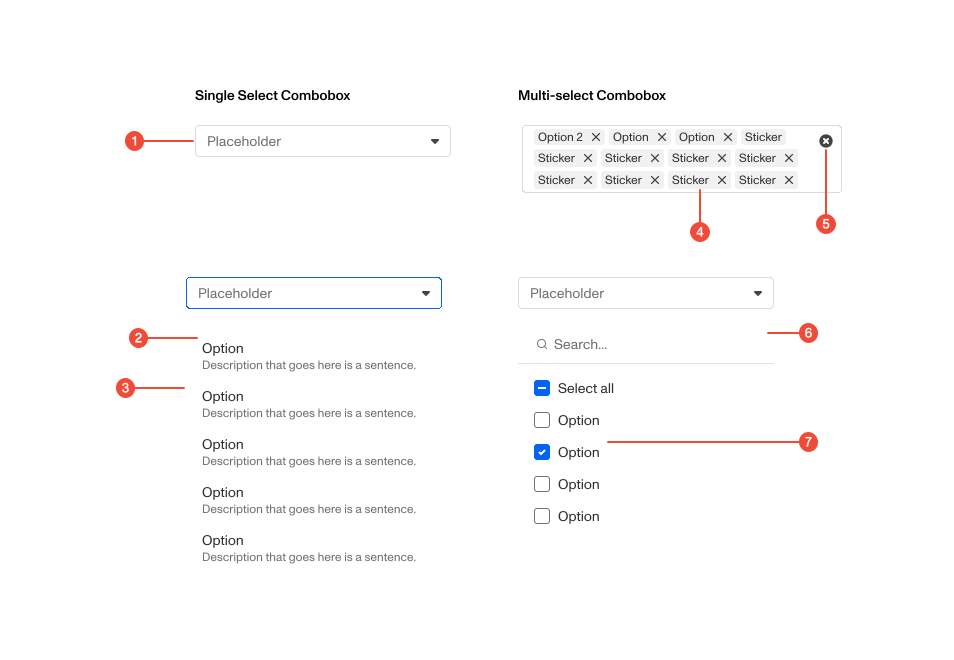
- Input container : where users type or view their selections. For single select combobox, users can type into this container to search through the list items.
- List items : options displayed in the popover; may include icons or descriptions.
- Popover : the dropdown menu that shows searchable results.
- Stickers (optional): selected, removable items displayed inside the input.
- Clear button (optional): removes all selected items.
- Search input (optional): allows users to type and search through all available list items.
- Checkbox (optional): allows users to select one or more option, indicating which items have already been selected.
| Prop | Type | Required | Default | Description |
|---|---|---|---|---|
size | any | false | - | Size of the combobox input |
options | ComboboxOptionsOrGroups<T> | true | - | Array of options to display in the dropdown Can be flat options, grouped options, or a mix of both |
isOptionsLoading | boolean | undefined | false | - | If true, the options are currently being loaded |
onInputChange | ((value: string) => void) | undefined | false | - | Callback when input value changes (for filtering) In single this is the main input, in multi this is the search input In both cases this corresponds to the input the user can type into to filter the options |
onOpenChange | ((isOpen: boolean) => void) | undefined | false | - | Callback when dropdown open state changes |
emptyStateMessage | string | undefined | false | - | Custom empty state message when no options match filter |
disabled | boolean | undefined | false | - | Whether the combobox is disabled |
labelId | string | undefined | false | - | ID of the label for the combobox input |
'aria-label' | string | undefined | false | - | Aria label for accessibility when no visible label is provided |
placeholder | string | undefined | false | - | Placeholder text when no option is selected |
hasWarning | boolean | undefined | false | - | Whether the combobox has a warning state |
hasError | boolean | undefined | false | - | Whether the combobox has an error state |
id | string | undefined | false | - | ID for the combobox input |
portal | boolean | undefined | false | - | Whether to render the dropdown in a portal (breaks out of overflow containers) |
portalContainerRef | RefObject<HTMLElement> | undefined | false | - | Reference to the container element for portal rendering. When provided, the dropdown will use this element’s dimensions for positioning. |
Usage guidance
Section titled “Usage guidance”When to use
Section titled “When to use”- When users need to select from a large or complex set of options that would be difficult to scan in a static list.
- When search is needed to quickly find the right option(s).
- When space is limited and you want to avoid showing a long list of checkboxes or radios.
- When both flexibility and precision are required—allowing users to either type to filter or pick from available options.
- When selections may change frequently and the input should update dynamically as users type or search.
When to use something else
Section titled “When to use something else”- Use the Select component when users don’t need to search or filter options.
- Use Radio Buttons for a small set of mutually exclusive options.
- Use Checkboxes for a small set of multiple selections where search isn’t required.
- Use Text Input when freeform input is needed, without selection from a list.
Do’s & don’ts
Section titled “Do’s & don’ts”Do
- Keep popover width consistent with the input; don’t exceed 400px.
- Keep the search field sticky at the top for usability.
- Provide “Select all” only in multiselect lists.
- Use truncation thoughtfully to preserve the most useful context.
- Use leading icons only when they add meaning.
Don't
- Overload list items with excessive description text, do not exceed 3 lines of text.
- Use combobox for very small option sets where simpler controls suffice.
- Allow dismiss per sticker in the compact version.
Accessibility guidelines
Section titled “Accessibility guidelines”- Ensure combobox has correct ARIA roles:
role="combobox",aria-expanded, andaria-controls. - The input should be labeled with a visible or programmatic label.
- Support keyboard navigation.
- Announce selection and deselection changes via screen readers.
- Ensure all icons and created options have accessible names.
Content guidelines
Section titled “Content guidelines”- Labels should be clear and describe the type of choice (e.g., “Select country”).
- Keep option text concise; add a description only when needed.
- Limit description text to three lines for readability.
- Use sentence case for labels and option text.
- Use consistent terminology between options and elsewhere in the product.