Radio buttons let users select a single option from a list. They are typically presented in groups where only one option can be chosen at a time. Radio buttons should be implemented using FormField, which provides preset slots for labels, inputs, and helper text to ensure consistent spacing, labeling, and accessibility across forms.
Anatomy
Section titled “Anatomy”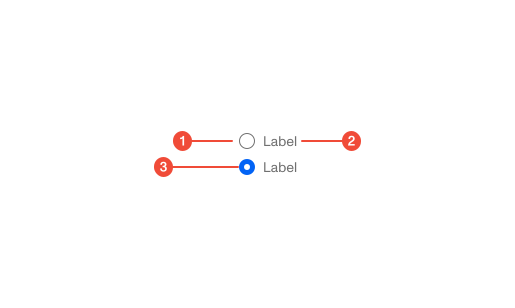
- Radio input : the circular control that displays selection state (checked or unchecked).
- Label : text describing the option associated with the radio button. Provided via FormField.
- Inner dot (conditional) : appears inside the radio input when selected to indicate the active choice.
| Prop | Type | Required | Default | Description |
|---|---|---|---|---|
id | string | undefined | false | - | If not provided, a unique ID will be generated. |
onChange | ((e: ChangeEvent<HTMLInputElement>) => void) | undefined | false | - | - |
label | ReactNode | false | - | - |
disabled | boolean | undefined | false | - | - |
checked | boolean | undefined | false | - | - |
value | string | true | - | - |
'data-test' | string | undefined | false | - | - |
size | "md" | "sm" | undefined | false | - | - |
Usage guidance
Section titled “Usage guidance”When to use
Section titled “When to use”- When users must choose only one option from a list of two or more.
- When all options are visible and mutually exclusive.
- When selecting a single configuration or preference (e.g., “Light mode” or “Dark mode”).
- When the available options are few and short, making them easy to scan.
When to use something else
Section titled “When to use something else”- Use a Checkbox when multiple options can be selected simultaneously.
- Use a Select or Combobox when there are many options or when space is limited.
- Use a Toggle when toggling a single setting on or off.
Do’s & don’ts
Section titled “Do’s & don’ts”Do
- Group radio buttons logically using a shared label or legend to define the question or category.
- Keep all radio buttons in a group vertically aligned for easier scanning.
- Use clear, descriptive labels for each option.
- Default to a sensible pre-selected option when appropriate.
Don't
- Allow multiple radio buttons in the same group to be selected.
- Use radio buttons for yes/no or true/false choices—use a single checkbox instead.
- Replace labels with placeholder or tooltip text.
- Use radio buttons for long lists of options that would require scrolling.
Accessibility guidelines
Section titled “Accessibility guidelines”- Group related radio buttons using a
fieldsetwith alegendto provide context. - Ensure each radio button has a unique, programmatically associated label.
- Only one radio button in a group should have
tabindex="0"; the rest should be navigable via Arrow keys. - Use
aria-checked="true"andaria-checked="false"to communicate selection state to assistive technologies. - Support full keyboard navigation.
Content guidelines
Section titled “Content guidelines”- Keep option labels short and clear (e.g., “Yes,” “No,” “Custom”).
- Use sentence case for all labels.
- Write group labels or legends as direct questions or short prompts (e.g., “Which theme do you prefer?”).
- Avoid negative phrasing in labels; use positive, direct wording.
- Ensure helper text adds clarity without restating the label.