Select lets users choose a value from a predefined list. It is ideal for compact selection when options are known and relatively small. Implement Select with FormField for consistent labels, helper text, spacing, and accessibility.
Anatomy
Section titled “Anatomy”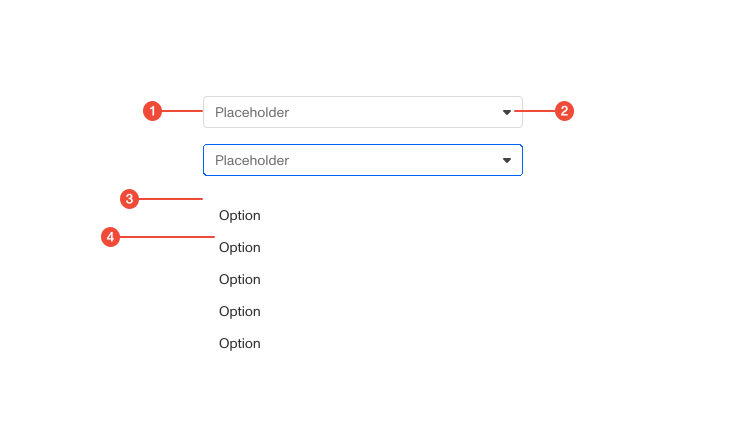
- Container : the field users click to open the menu; shows the current selection or placeholder.
- Chevron icon : indicates the field opens a menu.
- Menu : the dropdown surface containing options.
- Option : an individual choice within the menu; highlights on hover/focus and shows a checkmark when selected.
| Prop | Type | Required | Default | Description |
|---|---|---|---|---|
'aria-label' | string | undefined | false | - | - |
placeholder | string | undefined | false | - | - |
id | string | undefined | false | - | id will be applied to trigger |
className | string | undefined | false | - | Class name will be applied to trigger |
maxHeight | number | undefined | false | - | Max height of options menu |
minWidth | number | undefined | false | - | Min width of the select |
valueContainerWidth | "auto" | "100%" | undefined | false | - | Width of the selected value container |
portal | boolean | undefined | false | - | Render dropdown menu in a portal. |
triggerProps | any | false | - | Props to apply to Radix Select.Trigger within |
contentProps | any | false | - | Props to apply to Radix Select.Content within |
onChange | ((event: { target: { value: string; }; }) => void) | undefined | false | - | Callback meant for use with react-hook-form’s useForm (or Persona’s useFormSecurely) |
size | any | false | - | - |
value | string | null | undefined | false | - | - |
width | string | undefined | false | - | - |
header | ReactNode | false | - | - |
footer | ReactNode | false | - | - |
zIndex | ZIndex | undefined | false | - | z-index of content. Please use sparingly. |
Usage guidance
Section titled “Usage guidance”When to use
Section titled “When to use”- When users must pick one item from a short, known list.
- When space is limited and inline radios or checkboxes would be too bulky.
When to use something else
Section titled “When to use something else”- Use Combobox when users need to search or filter a larger set of options.
- Use Combobox when users should be able to select multiple options from a list.
- Use Radio Buttons for small sets with a single, always-visible choice.
- Use Checkboxes for small sets requiring multiple, always-visible choices.
- Use a Dropdown Button when the goal is to trigger an action, not choose a value.
Do’s & don’ts
Section titled “Do’s & don’ts”Do
- Wrap select in
FormFieldfor proper labeling and helper/error text. - Keep option labels concise and mutually exclusive.
- Order options logically (alphabetical, semantic, or by frequency).
- Set sensible defaults or placeholders (e.g., “Select country”).
- Constrain menu height and enable scrolling for longer lists.
Don't
- Use select for a very longlists, use combobox instead.
- Use select to perform actions like “Delete” or “Download,” use a button/menu.
- Rely on placeholder text as the only label.
- Overload options with long sentences or dense metadata.
Accessibility guidelines
Section titled “Accessibility guidelines”- Use
FormFieldto associate label → input (for/id) and helper/error viaaria-describedby. - Expose correct roles and attributes:
- Trigger/button with
aria-haspopup="listbox"andaria-expanded. - Menu uses
role="listbox"; options userole="option"witharia-selected.
- Trigger/button with
- Support keyboard navigation.
- Announce selection changes to assistive technologies.
Content guidelines
Section titled “Content guidelines”- Use clear, scannable labels (sentence case): “Select country”.
- Keep option text short; avoid jargon and abbreviations.
- For placeholders, use instructive text (“Select status”), not valid values.
- For multiselect, keep chip text concise and support truncation when space is limited.
- Align terminology with the rest of the product for consistency.