A Dropdown Button is a button component that opens a menu when clicked. It combines the affordance of a button with the flexibility of a menu, giving users access to a set of related actions. Dropdown Button supports the same visual variants as Button: text, basic (default), primary, danger, outlined, and inverse.
Anatomy
Section titled “Anatomy”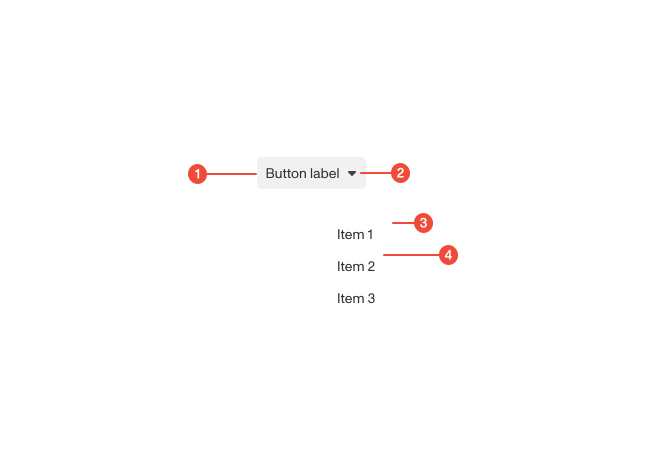
- Button : the clickable element that triggers the menu.
- Caret icon : indicates that clicking the button will open a menu.
- Menu container : the surface that holds the list of options.
- Menu items (optional): the individual actions or selections within the menu.
Props
| Prop | Type | Required | Default | Description |
|---|---|---|---|---|
menuItems | ReactNode | true | - | Use DropdownMenu.Item components to render the menu items. |
menuProps | DropdownMenuProps | undefined | false | - | Additional props will be spread to the inner <DropdownMenu> component. |
side | enum | false | - | The side of the dropdown menu. |
variant | enum | false | - | - |
isPending | boolean | undefined | false | - | Loading state of icon |
prefixIcon | ReactNode | false | - | Prepended icon element |
prefixIconType | enum | false | - | - |
suffixIcon | ReactNode | false | - | Appended icon element |
size | enum | false | - | - |
to | LocationDescriptor<any> | ((location: Location<any>) => LocationDescriptor<any>) | undefined | false | - | Changes the button into a link |
target | HTMLAttributeAnchorTarget | undefined | false | - | Overrides the target of the link if to is provided and is an external link. |
type | enum | false | - | Note: we may want to default this to ‘button’ in the future, but many instances of this Button component in dashboard currently rely on the default ‘submit’ behavior that occurs when using this in redux-form , so we’ll have to comb through and manually add the type=‘submit’ prop. |
width | enum | false | - | - |
onClick | MaybePromise | undefined | false | - | - |
ref | Ref<HTMLButtonElement> | undefined | false | - | - |
onSecondaryBackground | boolean | undefined | false | - | In some cases we render a button on a secondary background, which needs an adjustment for certain variants. |
mixed | boolean | undefined | false | - | - |
hovered | boolean | undefined | false | - | - |
focused | boolean | undefined | false | - | - |
active | boolean | undefined | false | - | - |
Usage guidance
Section titled “Usage guidance”When to use
Section titled “When to use”- When you need to group related actions under a single button.
- When there are too many actions to fit comfortably on the page or in a toolbar.
- When actions are secondary to a main workflow and don’t need persistent visibility.
When to use something else
Section titled “When to use something else”- Use a regular Button when you only need a single action.
- Use a Dropdown Menu when actions are not triggered by a button but by another element (e.g., right-click or overflow icon).
- Use Tabs when switching between views or content sections, rather than exposing discrete actions.
- Use a Select or Combobox when the intent is to choose a value, not trigger an action.
Do’s & don’ts
Section titled “Do’s & don’ts”Do
- Use clear and descriptive labels for the button and its menu items.
- Match the dropdown button’s variant to the action’s priority (e.g., primary for most important, danger for destructive).
- Keep menu items logically grouped and limited in number (ideally fewer than 7).
- Ensure menu position aligns with the button and does not obscure critical content.
- Use a modal to confirm destructive actions within the Dropdown Button’s menu.
Don't
- Overuse dropdown buttons for actions that are frequently used—prefer dedicated buttons in those cases.
- Use dropdowns for navigation when tabs or links would be more appropriate.
- Hide essential, primary actions in a dropdown; keep them visible at the surface level.
Accessibility guidelines
Section titled “Accessibility guidelines”- The button must expose
aria-haspopup="menu"andaria-expandedto indicate the menu state. - The menu should use
role="menu"with menu items usingrole="menuitem". - The caret icon should not be the only indicator of a dropdown—ensure a screen reader accessible label indicates menu behavior.
- Support full keyboard navigation.
- Ensure the menu closes automatically when focus moves away.
Content guidelines
Section titled “Content guidelines”- Use short, action-oriented verbs for menu items (e.g., “Edit,” “Delete,” “Download”).
- Keep button labels concise and focused (e.g., “Actions,” “More”).
- Use sentence case for all labels.
- Avoid redundant labels like “Menu” in the button text; the caret icon already conveys menu behavior.
- Place destructive actions like “Delete” at the bottom of the menu.