Popover is an elevated surface that displays contextual content anchored to a trigger element. It appears when users interact with a button, icon, or another interface element, providing additional information or controls without navigating away from the current view.
Anatomy
Section titled “Anatomy”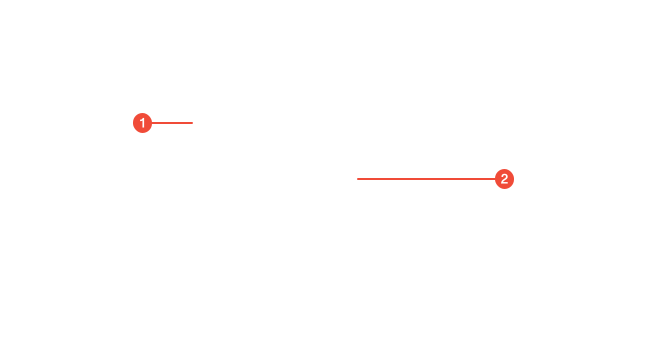
- Container : the elevated surface positioned relative to the trigger or anchor; provides the popover’s shape, elevation, and shadow.
- Content area : the main body of the popover containing text, controls, or actions. It should remain lightweight and focused.
Props
| Prop | Type | Required | Default | Description |
|---|---|---|---|---|
trigger | ReactElement<any, string | JSXElementConstructor<any>> | undefined | false | - | Component to use as trigger. Radix UI trigger component props will be merged with this element. |
triggerProps | PopoverTriggerProps | undefined | false | - | Props to apply to Popover.Trigger within |
anchor | ReactElement<PopoverAnchorProps, string | JSXElementConstructor<any>> | undefined | false | - | An optional element to position the Popover.Content against. If this part is not used, the content will position alongside the trigger. |
contentProps | PopoverCardProps | undefined | false | - | Props to apply to Popover.Card within |
portal | boolean | undefined | false | true | Render content within a portal |
portalProps | PopoverPortalProps | undefined | false | - | Props applied to Radix UI Portal component |
Usage guidance
Section titled “Usage guidance”When to use
Section titled “When to use”- To show contextual information or actions related to a specific trigger element.
- To display lightweight, non-persistent content that supplements the main page.
- When users should stay within the current context while accessing secondary content.
- When the information needs elevation to stand out visually from the page background.
When to use something else
Section titled “When to use something else”- Use Tooltip for short, single-sentence descriptions or labels revealed on hover or focus.
- Use Modal for more involved interactions requiring user focus or confirmation.
- Use Dropdown Menu for lists of related actions or options.
- Use Side Panel for displaying persistent or extensive content.
Do’s & don’ts
Section titled “Do’s & don’ts”Do
- Use a clear trigger element that indicates a secondary layer of content will appear.
- Keep popover content concise and relevant to the trigger.
- Position the popover so it doesn’t obscure critical interface elements.
- Allow dismissal by clicking outside the popover or pressing the Esc key.
- Ensure the popover’s elevation and shadow align with design token values for depth consistency.
Don't
- Use popovers for complex workflows or multi-step actions.
- Contain scrollable or extensive layouts inside a popover.
- Trigger multiple popovers simultaneously.
- Use popovers to display critical or permanent information that users must always see.
Accessibility guidelines
Section titled “Accessibility guidelines”- Use
role="dialog"orrole="tooltip"depending on the interaction and content. - Associate the trigger with the popover using
aria-controlsandaria-expanded. - Popovers must be dismissible via the Esc key and clicking outside the container.
- Keep keyboard focus within the popover while open, and return focus to the trigger when closed.
- Avoid hover-only triggers; ensure popovers open on focus or click for accessibility.
Content guidelines
Section titled “Content guidelines”- Keep content focused and directly related to the trigger element.
- Use concise language and avoid long paragraphs or dense information.
- When including actions, label them clearly and limit to one or two relevant options.
- Maintain consistent spacing and layout within the popover.
- Avoid embedding complex components such as tables, forms, or multi-step interactions.