Tooltip is a lightweight message overlay that provides additional or contextual information about an element on the screen. It appears when users hover or focus on a target element, such as an icon or underlined text. For advanced use cases, the FloatingTooltip export can be used to apply Tooltip styles to more complex or custom interactions.
Anatomy
Section titled “Anatomy”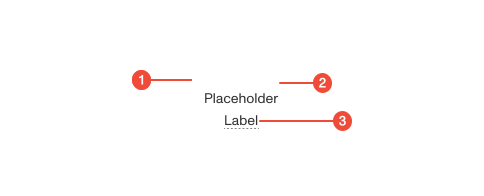
- Tooltip container : the surface that holds the tooltip message and ensures proper spacing and contrast.
- Message : the brief explanatory text providing additional information or context.
- Trigger element : the element that reveals the tooltip, such as an icon, button, or underlined text.
Props
| Prop | Type | Required | Default | Description |
|---|---|---|---|---|
trigger | ReactElement<any, string | JSXElementConstructor<any>> | undefined | false | - | Element that will trigger the tooltip. A ref will be set. |
iconTrigger | ReactElement<any, string | JSXElementConstructor<any>> | undefined | false | - | Icon that will trigger the tooltip. A wrapper div will be set. |
className | string | undefined | false | - | - |
contentAlignment | enum | false | - | - |
hideArrow | boolean | undefined | false | - | Optionally hide tooltip arrow. |
disabled | boolean | undefined | false | false | Disabling will prevent tooltip from rendering on the trigger |
portal | boolean | undefined | false | true | Render in a portal. Disable to render adjacent to trigger for rendering within elements such as modals |
portalProps | TooltipPortalProps | undefined | false | - | Props applied to Radix UI Portal component |
interactive | boolean | undefined | false | true | Determines if the tooltip closes when the mouse hovers into the tooltip content area |
zIndex | number | undefined | false | 10 | Override the zIndex in case the tooltip is used in situations where the content is already elevated |
maxWidth | string | undefined | false | - | Max width of the contents in the tooltip |
triggerProps | TooltipTriggerProps | undefined | false | - | Props to apply to Tooltip.Trigger within |
size | enum | false | md | Size of the tooltip. Defaults to ‘md’. |
asChild | boolean | undefined | false | - | - |
Usage guidance
Section titled “Usage guidance”When to use
Section titled “When to use”- To provide short, supplemental information about a control, icon, or label.
- To define or clarify an unfamiliar term or abbreviation.
- To describe the purpose or outcome of an action when the interface lacks space for inline text.
- To offer lightweight guidance without disrupting the workflow.
When to use something else
Section titled “When to use something else”- Use text or helper text for persistent explanations in forms.
- Use Modals for longer, task-related guidance that requires focus.
- Avoid using Tooltip for critical information users must always see.
Do’s & don’ts
Section titled “Do’s & don’ts”Do
- Use concise, plain language in tooltip messages.
- Ensure tooltip text is readable and fits within the container without wrapping awkwardly.
- Trigger tooltips with hover or focus for accessibility.
- Use underlined text to indicate terms or phrases that show a tooltip on hover.
- Keep tooltip content visible long enough for users to read comfortably.
Don't
- Place interactive elements (buttons, links) inside tooltips.
- Display tooltips for essential instructions that users need to complete a task.
- Use tooltips on touch devices where hover behavior doesn’t exist.
- Overuse tooltips—too many can clutter the interface.
Accessibility guidelines
Section titled “Accessibility guidelines”- Ensure tooltips appear on both hover and focus for keyboard and assistive technology users.
- The tooltip message should be accessible to screen readers using
aria-describedbyon the trigger element. - Keep focus on the trigger element when the tooltip is visible; tooltips should not capture keyboard focus.
- Ensure the tooltip appears close to its trigger without obscuring it.
- Dismiss tooltips automatically when focus or hover leaves the trigger.
Content guidelines
Section titled “Content guidelines”- Keep tooltip text short and scannable, ideally one sentence.
- Use sentence case and plain, descriptive language.
- Avoid instructions like “click here” or repeating obvious information.
- Do not include links, buttons, or complex formatting.
- Use tooltips only for supplementary or clarifying information—never for critical content.