Modals are layered containers that capture user attention for focused tasks or important information. A modal is a popup placed on top of an overlay that visually hides the background. Users can close a modal by clicking the overlay, pressing Esc or selecting the “X” icon button in the top-right corner.
Anatomy
Section titled “Anatomy”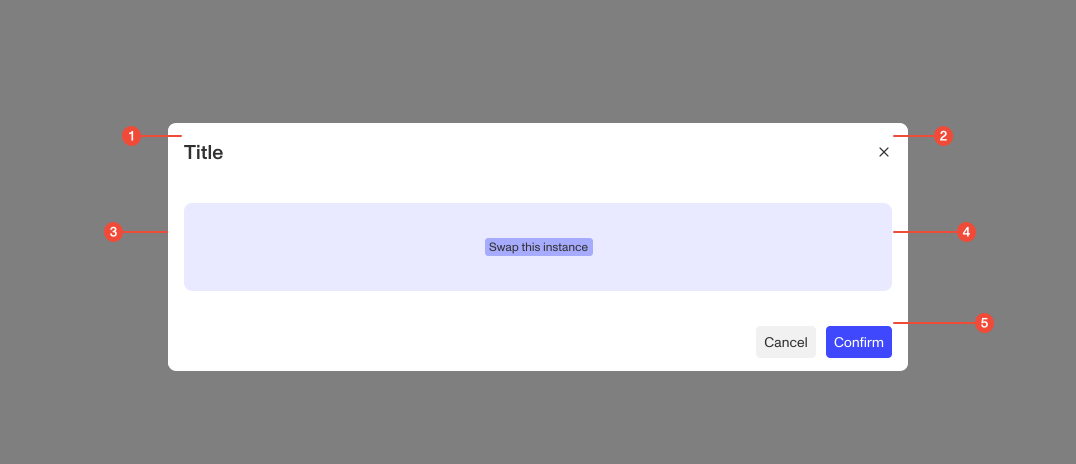
- Title : contains the title or context for the modal’s content.
- Close button : an icon button in the top-right corner that dismisses the modal.
- Container : the modal surface built using a card component. Provides elevation, rounded corners, and internal padding.
- Body : the main content area of the modal, containing text, form fields, or other components.
- Footer : optional area for primary and secondary action buttons.
| Prop | Type | Required | Default | Description |
|---|---|---|---|---|
title | string | undefined | false | - | Title of the Card |
trigger | any | false | - | Component to use as trigger. React Aria trigger props will be merged with this element. |
contentProps | ModalCardProps | undefined | false | - | Props to apply to Modal.Card within |
size | "md" | "auto" | "lg" | "xl" | undefined | false | - | Max width of the modal |
footer | ReactNode | false | - | Footer section intended for actions. You can pass in Buttons directly and they will render in a HStack. |
tabs | TabView[] | undefined | false | - | Renders tabs within the modal. Adds a tab bar and will render the contents of the selected tab in a tabpanel. Overrides children. |
children | ReactNode | ((props: { portalContainer: HTMLDivElement | null; }) => ReactNode) | false | - | Children content |
open | boolean | undefined | false | - | Controls whether the modal is open (controlled) |
defaultOpen | boolean | undefined | false | - | Default open state (uncontrolled) |
onOpenChange | ((isOpen: boolean) => void) | undefined | false | - | Handler called when open state changes |
isDismissable | boolean | undefined | false | - | Whether the modal can be dismissed by clicking outside or pressing escape |
isKeyboardDismissDisabled | boolean | undefined | false | - | Whether pressing the escape key closes the modal |
Usage guidance
Section titled “Usage guidance”When to use
Section titled “When to use”- When you need to capture user attention for a focused task or confirmation.
- When users must take an action or provide input before returning to the main flow.
- For short, self-contained interactions such as editing details, confirming actions, or displaying alerts.
When to use something else
Section titled “When to use something else”- Use a Side Panel for interactions that don’t require full user focus.
- Use an inline Card or expandable section for lightweight inline content.
- Use a Toast for passive feedback that doesn’t need user input.
- Use a new page for complex, multi-step workflows that exceed the modal’s scope.
Do’s & don’ts
Section titled “Do’s & don’ts”Do
- Keep modals focused on a single, clear purpose.
- Include both primary and secondary actions when applicable (e.g., “Save” and “Cancel”).
- Allow users to close the modal by clicking the overlay or pressing Esc.
- Use concise titles and clear messaging.
- Return focus to the triggering element when the modal closes.
Don't
- Use modals for long or complex content that requires extensive scrolling.
- Nest modals within other modals.
- Launch multiple modals from a single interaction.
- Remove or hide all exit options—users should always have a clear way to close a modal.
Accessibility guidelines
Section titled “Accessibility guidelines”- Use semantic roles and ARIA attributes:
role="dialog"orrole="alertdialog"depending on context.aria-modal="true"to indicate that background content is inactive.- Associate modal title and description with
aria-labelledbyandaria-describedby.
- Trap keyboard focus within the modal while it is open.
- Support multiple close methods: Esc, clicking the overlay, or using the “X” icon button.
- Return focus to the triggering element when the modal closes.
- Prevent background content from being read or interacted with by assistive technologies.
Content guidelines
Section titled “Content guidelines”- Use short, clear titles that summarize the modal’s purpose (e.g., “Delete account”).
- Keep body text concise and action-oriented.
- Use sentence case for all text.
- Prioritize the most important information or action at the top.
- Label buttons clearly (e.g., “Save changes,” “Cancel,” “Delete”).
- Avoid unnecessary detail—modals should help users focus on a single task.