Cards are containers that group related content and actions. They help organize information into manageable sections and make scanning easier for users.
Anatomy
Section titled “Anatomy”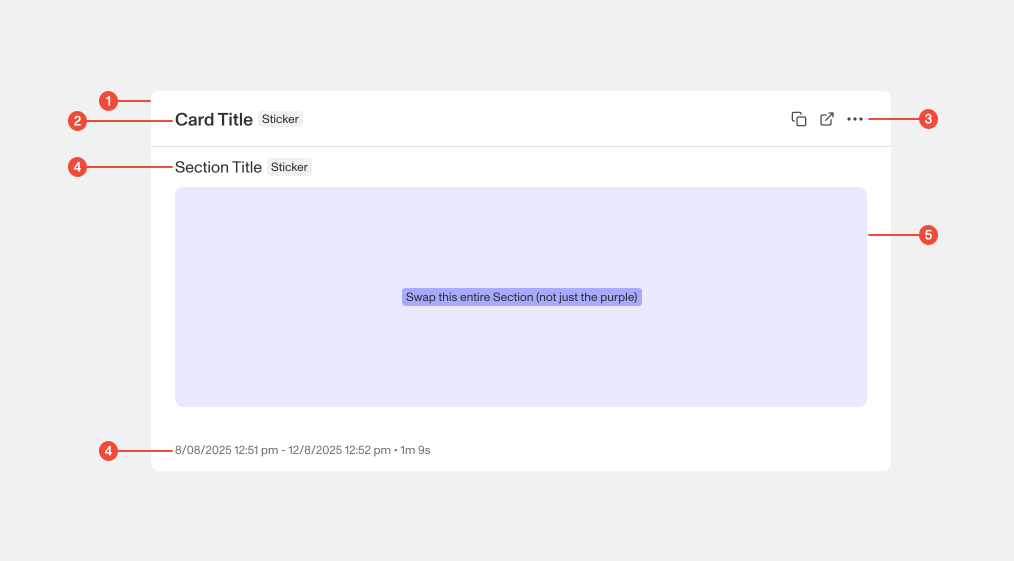
- Container : the bordered surface that provides rounded corners
- Title (optional): title or metadata that introduces the card's content.
- Actions (optional): buttons, icons, or links associated with the card's content.
- Section Title (optional): title or metadata that introduces the a section of content within the card.
- Body : the body of the card that contains text, media, or interactive elements.
- Footer (optional): the bottom of the card used to contain additional, secondary metadata.
| Prop | Type | Required | Default | Description |
|---|---|---|---|---|
footer | ReactNode[] | undefined | false | - | Optional footer to render at the bottom of the card. Footer content is rendered as a paragraph with the items separated by a dot. |
footerContent | ReactNode | false | - | Optional arbitrary footer content to render as-is. |
sticky | boolean | undefined | false | - | Whether the card heading and footer are sticky. |
errored | boolean | undefined | false | - | Force the card to render in an errored state. Errors bubbling up from children will also render the errored state. |
erroredProps | { message?: string | undefined; onError?: ((error: Error) => void) | undefined; } | undefined | false | - | Props for the errored state. |
containerProps | any | false | - | - |
fullHeight | boolean | undefined | false | - | Whether the card should render its content with 100% height. This is a bit of a hack for cards that want full control of their content and don’t use sections. |
children | any | true | - | - |
heading | any | true | - | - |
collapsible | any | true | - | - |
defaultCollapsed | any | true | - | - |
loading | any | true | - | - |
loadingProps | any | true | - | - |
empty | any | true | - | - |
emptyProps | any | true | - | - |
Usage guidance
Section titled “Usage guidance”When to use
Section titled “When to use”- Grouping related content or data into a distinct section.
- Highlighting information that belongs together but is separate from other page content.
- Displaying collections of items, such as product tiles or dashboards.
- Pairing primary content with related actions (e.g., a profile card with an “Edit” button).
When to use something else
Section titled “When to use something else”- For transient or global system feedback, use Toasts or Banners.
- For full-page layouts, use containers or sections rather than cards.
- For structured, comparative data, use Tables instead of trying to force rows into cards.
- For organizing related content into separate views, use Tabs instead.
Do’s & don’ts
Section titled “Do’s & don’ts”Do
- Use consistent padding (spacing tokens) between cards to maintain rhythm.
- Keep content focused; cards should support scanning, not overwhelm.
Don't
- Nest cards inside cards; this creates unnecessary complexity.
- Overuse cards—too many on a page makes it harder to scan.
Accessibility guidelines
Section titled “Accessibility guidelines”- If the entire card is clickable, expose it as a single interactive element (e.g., a link or button) and not multiple competing targets.
- Preserve logical heading structure within card content for screen reader users.
- Ensure interactive elements inside a card are keyboard accessible and have clear focus states.
Content guidelines
Section titled “Content guidelines”- Keep headings short and scannable.
- Place the most important content at the top of the card.
- Use sentence case for text.
- Be concise; cards should summarize or highlight, not replace full detail views.