Table displays data in a structured grid of rows and columns, allowing users to scan, compare, and take action on information. The table component and its subcomponents support sticky headers, sortable columns, and row selection through checkboxes.
Anatomy
Section titled “Anatomy”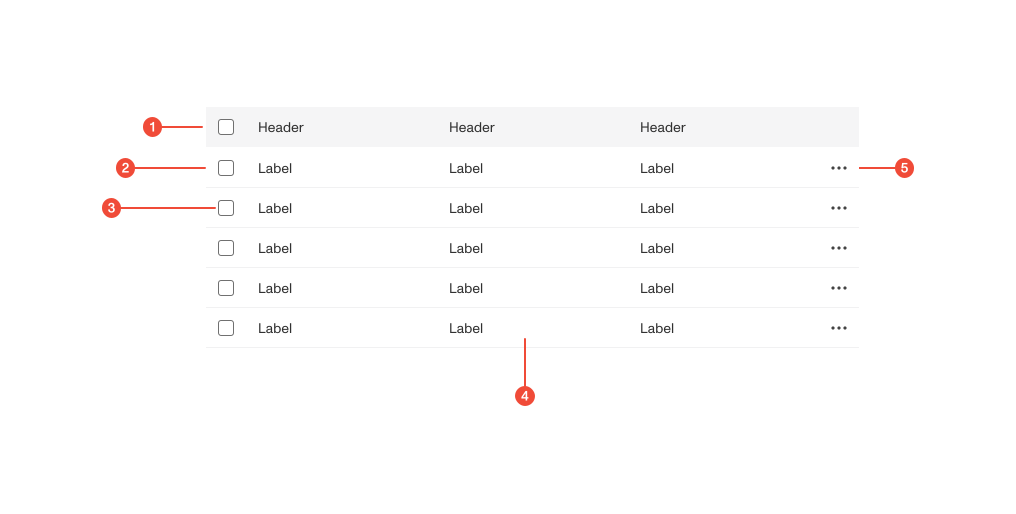
- Header row : the top row of column headers; can include sorting controls and a select-all checkbox.
- Table container : the main wrapper that manages scrolling, sticky headers, and layout.
- Checkbox (optional): used to select one or more rows or all rows in the header.
- Header cell : a column label that identifies the type of data in that column; may include a sort icon.
- Body row : a horizontal group of cells representing a single data record.
- Cell : a data value within a row and column intersection.
- Sticky header (optional): a header that remains visible while scrolling vertically for large datasets.
Props
| Prop | Type | Required | Default | Description |
|---|---|---|---|---|
ref | ((instance: HTMLTableElement | null) => void) | RefObject<HTMLTableElement> | null | undefined | false | - | - |
size | enum | false | - | - |
isLoading | boolean | undefined | false | - | - |
theme | any | false | - | - |
as | undefined | false | - | - |
forwardedAs | undefined | false | - | - |
Usage guidance
Section titled “Usage guidance”When to use
Section titled “When to use”- To display tabular data for scanning, sorting, or comparison.
- When information is best presented in a grid-like structure with consistent columns.
- When users need to sort or select individual rows for further actions.
- For basic data tables that don’t require built-in search, filtering, or bulk operations.
When to use something else
Section titled “When to use something else”- Use a list or Card for simpler data presentations or unstructured content.
Do’s & don’ts
Section titled “Do’s & don’ts”Do
- Keep column labels short and descriptive.
- Use sorting where it provides value and maintain clear visual indicators.
- Align numeric data to the right and text to the left for better readability.
- Use sticky headers for long datasets to keep context visible.
- Provide row selection only when users can take meaningful action on selected items.
Don't
- Overload tables with too many columns or deeply nested data.
- Use tables for content that’s not structured in consistent columns.
- Mix action buttons and inline editing within the same table cell without clear hierarchy.
- Add sorting on columns where the order doesn’t matter or creates confusion.
Accessibility guidelines
Section titled “Accessibility guidelines”- Use semantic HTML structure:
<table>,<thead>,<tbody>,<th>, and<td>. - Include proper header associations using
scope="col"orscope="row". - For sortable headers, use
aria-sortto indicate sort direction (ascending,descending, ornone). - For row selection:
- Header checkbox should toggle all rows.
- Each checkbox should have a label or
aria-labelledbylinking to the row’s key data.
- Ensure tables support keyboard navigation.
- Sticky headers must remain readable and accessible to screen readers while scrolling.
Content guidelines
Section titled “Content guidelines”- Use concise, descriptive column headers (sentence case).
- Include units or data formats in column headers if necessary (e.g., “Amount (USD)”).
- Keep cell content short and scannable; truncate long text with tooltips when needed.
- Align related actions (e.g., “Edit”, “Delete”) consistently in a dedicated column.
- If using a checkbox column, position it as the first column.
- Use clear empty states when no data is available (e.g., “No records found”).
- Avoid embedding long-form text or interactive components that disrupt table readability.