List Box displays a list of options and allows users to select one or more of them. It can optionally include actions for adding or deleting items. List Box is ideal for structured, scrollable lists where users can manage or choose from multiple entries.
Anatomy
Section titled “Anatomy”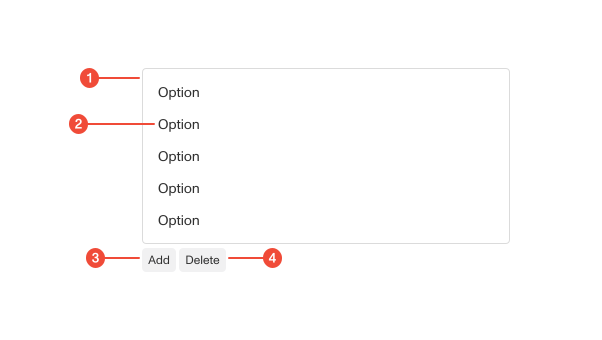
- Container : the bordered surface that contains all list items and provides scroll behavior when content overflows.
- List item : an individual entry that users can select, focus, or manage.
- Add button (optional): button below the list that allows users to add a new item.
- Delete button (optional): button below the list that allows users to remove selected items.
| Prop | Type | Required | Default | Description |
|---|---|---|---|---|
onAdd | any | false | - | Called when “Add” button is clicked. Only renders “Add” button if this prop is present. |
onDelete | ((selectedKeys: any) => void) | undefined | false | - | Called when “Delete” button is clicked. Only renders “Delete” button if this prop is present. |
deleteDisabled | boolean | undefined | false | - | Whether or not delete button should be disabled. |
editable | boolean | undefined | false | - | Whether or not the Add/Delete buttons should be shown. |
emptyText | string | undefined | false | - | Text to display if no options are available. |
fullWidth | boolean | undefined | false | - | Whether or not to expand the box to the full width of the container. |
reorderConfig | { onReorder: (reorderedItems: T[]) => void; itemKeyPath: string; } | undefined | false | - | When provided, enables drag and drop functionality. |
size | "md" | "sm" | undefined | false | - | Size of the list box. |
Usage guidance
Section titled “Usage guidance”When to use
Section titled “When to use”- When users need to choose one or more items from a visible list.
- When it’s important to show all available options at once without a dropdown.
- When users must manage items directly in the same control (adding or deleting options).
- When the list length may grow or shrink dynamically based on user interaction.
When to use something else
Section titled “When to use something else”- Use a Select for compact, single select inputs that don’t require visible lists.
- Use a Combobox when search or filtering is needed.
- Use Checkboxes for simple, static multi-select options.
Do’s & don’ts
Section titled “Do’s & don’ts”Do
- Keep list items concise and scannable.
- Use the Add and Delete actions only when users can modify the list.
- Provide empty state messaging when the list is initially blank.
Don't
- Overpopulate the list with too many items without scroll support.
- Hide Add or Delete actions when they are the primary way to interact with the list.
- Use a List Box when inline form inputs or dynamic editing are required.
Accessibility guidelines
Section titled “Accessibility guidelines”- Use semantic roles:
role="listbox"for the container.role="option"for each item, witharia-selectedto indicate state.
- Support single and multiple selection patterns.
- Support keyboard navigation.
- Announce item count and selection state to assistive technologies.
- Ensure Add and Delete buttons have clear labels and accessible names.
Content guidelines
Section titled “Content guidelines”- Use short, descriptive labels for each list item.
- Keep button labels action-oriented (for example, Add item, Delete selected).
- Provide helper text or an empty state message when the list starts blank.
- Use sentence case for all text.
- If items are user-generated, ensure duplicates are handled clearly (for example, warn before adding duplicates).