Text Area allows users to enter and edit multi-line text. It supports error states and can be resized or fixed depending on the use case. Text Area should be implemented with FormField for consistent labeling, spacing, and accessibility.
Anatomy
Section titled “Anatomy”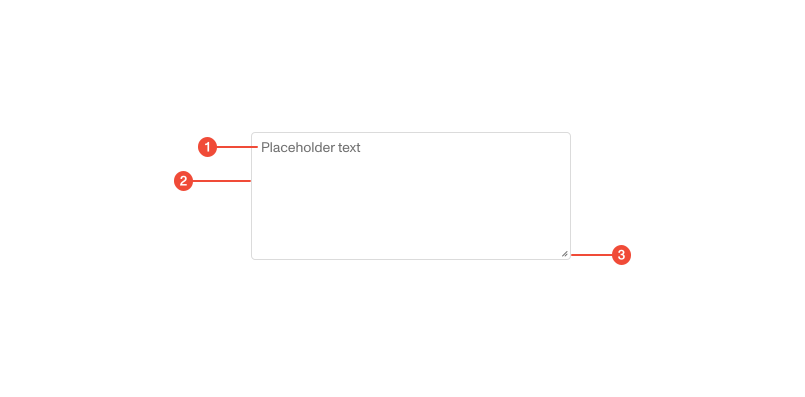
- Placeholder : example or hint text that appears when the field is empty.
- Container : the outer wrapper that defines the text area’s boundary, padding, and states such as focus or error.
- Resize handle (optional): the corner control that allows users to adjust the height of the text area when resizing is enabled.
Props
| Prop | Type | Required | Default | Description |
|---|---|---|---|---|
checked | boolean | undefined | false | - | - |
size | enum | false | - | Size of the input. If you need the HTML size attr, use inputSize. |
mixed | boolean | undefined | false | - | - |
hasError | boolean | undefined | false | - | - |
hasWarning | boolean | undefined | false | - | - |
hovered | boolean | undefined | false | - | - |
focused | boolean | undefined | false | - | - |
active | boolean | undefined | false | - | - |
Usage guidance
Section titled “Usage guidance”When to use
Section titled “When to use”- To capture multi-line input such as descriptions, comments, or notes.
- When users need to provide detailed or formatted feedback.
- When input length or complexity exceeds what a single-line text input supports.
When to use something else
Section titled “When to use something else”- Use Text Input for short, single-line entries like names, email addresses, or search terms.
- Use a Rich Text Editor when users need to format or style content.
- Use a Combobox or Select when users must choose from predefined options instead of typing freely.
Do’s & don’ts
Section titled “Do’s & don’ts”Do
- Wrap Text Area in
FormFieldfor proper labeling and helper text support. - Use tooltip on the label to clarify input expectations or constraints.
- Consider a character counter for inputs with limits.
- Use fixed height when layout stability is important and resizable when flexibility is needed.
- Validate input as users type for better feedback.
Don't
- Use Text Area for short responses or single words.
- Place critical information only in placeholder text.
- Allow uncontrolled resizing that breaks layout or obscures nearby content.
- Omit labels or rely solely on placeholder text for context.
Accessibility guidelines
Section titled “Accessibility guidelines”- Use FormField to associate label and helper text programmatically.
- Support keyboard interaction for cursor movement and text editing.
- Announce character limits to screen readers when present.
- For error states, use
aria-invalid="true"and link helper or error text witharia-describedby.
Content guidelines
Section titled “Content guidelines”- Label fields clearly and in sentence case (for example, Description or Additional notes).
- Keep placeholder text short and example-based (for example, Add your comments here).
- Write helper text to explain rules or constraints briefly (for example, Maximum 500 characters).
- Write error messages in clear, actionable language (for example, Enter fewer than 500 characters).
- Maintain consistent tone and clarity across all form inputs.