Sliders let users choose a value (or range of values) along a continuous scale. They are useful for quick, approximate adjustments where visual feedback matters more than exact precision.
Anatomy
Section titled “Anatomy”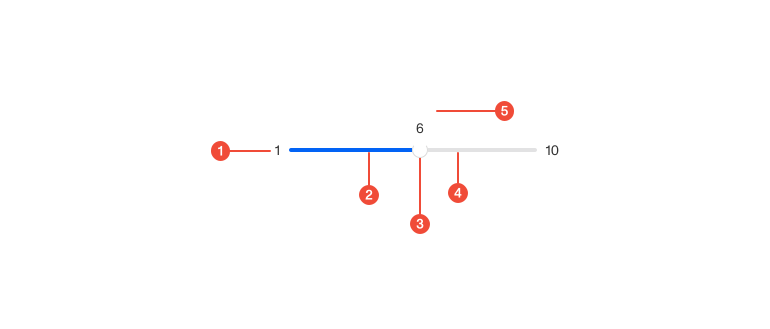
- Min/Max labels (optional): optional labels indicating the scale’s endpoints (e.g., 0 and 100).
- Fill : the portion of the track between the minimum and the current value.
- Thumb : the draggable handle used to set the value; shows focus and drag states.
- Track : the horizontal rail the thumb moves along.
- Value label / tooltip (optional): optional live value shown near the thumb on focus/drag.
| Prop | Type | Required | Default | Description |
|---|---|---|---|---|
min | number | undefined | false | - | - |
minLabel | ReactNode | false | - | - |
max | number | undefined | false | - | - |
maxLabel | ReactNode | false | - | - |
onChange | ((value: T) => void) | undefined | false | - | - |
value | T | undefined | false | - | - |
defaultValue | T | undefined | false | - | - |
step | number | undefined | false | - | - |
showLabels | boolean | undefined | false | - | Show labels on ends of track |
track | boolean | undefined | false | - | Track style |
hideTooltips | boolean | undefined | false | - | Hide tooltips on slider thumbs |
width | number | "auto" | undefined | false | - | - |
disabled | boolean | undefined | false | - | - |
formatOptions | any | false | - | - |
id | string | undefined | false | - | - |
className | string | undefined | false | - | - |
name | string | undefined | false | - | - |
onBlur | FocusEventHandler<HTMLDivElement> | undefined | false | - | - |
'aria-label' | string | undefined | false | - | - |
'aria-labelledby' | string | undefined | false | - | - |
Usage guidance
Section titled “Usage guidance”When to use
Section titled “When to use”- Adjusting a value along a continuous scale (e.g., volume, opacity, zoom).
- Choosing among many ordered values where exact precision is not critical.
- Providing instant visual feedback as the user drags (e.g., previewing changes).
When to use something else
Section titled “When to use something else”- Use input when users must enter an exact value.
- Use Select or Radio Buttons for a small set of discrete choices.
- Use Progress Bar for read-only status, not input.
Do’s & don’ts
Section titled “Do’s & don’ts”Do
- Provide a clear label and, when helpful, min/max context (units, bounds).
- Set an appropriate
step(e.g., multiples of 1, 5, or 10) and a sensible default. - Use a value label on focus/drag when precision matters.
- Keep the scale intuitive (low → high left to right).
Don't
- Use a slider for precise inputs like currency or IDs.
- Hide the current value when users need accuracy.
- Pack multiple sliders with overlapping meanings into a tight space.
Accessibility guidelines
Section titled “Accessibility guidelines”- Use semantic roles/attributes:
role="slider"witharia-valuemin,aria-valuemax,aria-valuenow, and (when helpful)aria-valuetext.- Add
aria-orientation="horizontal"(or vertical if used).
- Provide keyboard navigation support.
- For range sliders, expose two thumbs, each with its own focus and accessible name (e.g., “Minimum price”, “Maximum price”).
- Announce value changes to assistive tech; pair with
FormFieldso labels and helper/error text are programmatically associated.
Content guidelines
Section titled “Content guidelines”- Label the control clearly (e.g., “Opacity”). If units matter, show them (e.g., “Opacity (%)”).
- Use concise helper text to explain the effect or valid range.
- Prefer numeric ranges that match user expectations (e.g.,
0-100). - If showing a value label/tooltip, format values consistently (e.g.,
34%,$120). - Error text should clearly describe how the user can fix the problem (for example, “Choose a value between 10 and 50”).