Calendars allow users to select a specific date or a range of dates. They are presented in a calendar interface that can be navigated month by month. PDS provides two variations: Calendar for selecting a single date, and RangeCalendar for selecting a range of dates with optional presets for relative ranges.
Anatomy
Section titled “Anatomy”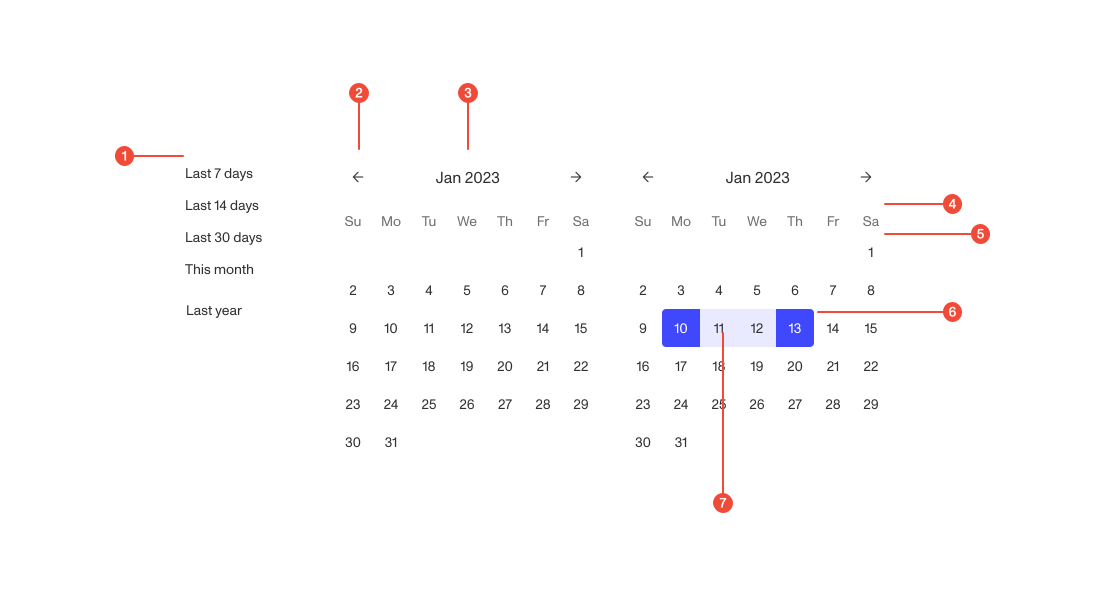
- Preset (conditional) : predefined relative date configurations.
- Navigation controls : arrows for moving between months.
- Month and year label : used to indicate the month and year being displayed.
- Weekday label : used to indicate the days of the week.
- Day label : used to indicate the numeric date.
- Active date : indicates a date has been selected.
- Highlight date : indicates a date is selected as part of a date range.
| Prop | Type | Required | Default | Description |
|---|---|---|---|---|
minDate | any | false | - | - |
maxDate | any | false | - | - |
calendarRef | Ref<HTMLDivElement> | undefined | false | - | - |
hidePresets | boolean | undefined | false | - | - |
onSelectDate | ((d: CalendarDate) => void) | undefined | false | - | - |
setDateMode | (mode: "end" | "start" | null) => void | true | - | - |
setValue | (value: any) => void | true | - | From setValue of DateRangePicker |
granularity | "day" | "hour" | "minute" | "second" | true | - | - |
Usage guidance
Section titled “Usage guidance”When to use
Section titled “When to use”- Use
Calendarwhen users need to pick a single date, such as a birthday, due date, or event date. - Use
RangeCalendarwhen users need to analyze or filter data across a timeframe (e.g., index tables, analytics). - Use presets for common ranges like “Last 7 days” to simplify repetitive tasks.
When to use something else
Section titled “When to use something else”- Use a Time Picker when users need to select a specific time of day rather than a date.
- Use a Select for selecting non-date values like fiscal quarters or weeks if that better matches the user’s mental model.
Do’s & don’ts
Section titled “Do’s & don’ts”Do
- Default to today’s date when it makes sense for the workflow.
- Provide relative presets for range selection to speed up common tasks.
Don't
- Overload users with too many presets—stick to the most relevant ones.
- Hide key instructions; make it clear whether a single date or a range is required.
Accessibility guidelines
Section titled “Accessibility guidelines”- Use semantic markup and proper ARIA roles:
role="grid"for the calendar grid.aria-selectedto indicate chosen dates.aria-labelfor navigation buttons (e.g., “Next month”).
- Ensure full keyboard support.
- Announce selected dates and ranges via screen readers.
- Support screen reader context (e.g., “March 2025, 31 days, starting on Sunday”).
Content guidelines
Section titled “Content guidelines”- Use clear labels on inputs (e.g., “Start date,” “End date,” “Select a date”).
- Format dates consistently across the product (e.g.,
MMM DD, YYYY). - Keep preset labels short and user-friendly (e.g., “Last 7 days,” not “Previous seven days”).
- Use sentence case for labels and controls.
- Avoid jargon; align wording with how users naturally talk about time ranges.